You unbox a brand-new iPhone 18 Pro Max, everything looks perfect, and then you notice two small letters in the corner of the screen: SOS. No calls. No texts. No mobile data. If you’re on AT&T in the US, you’re not alone, and the carrier itself is now sending warnings about it.
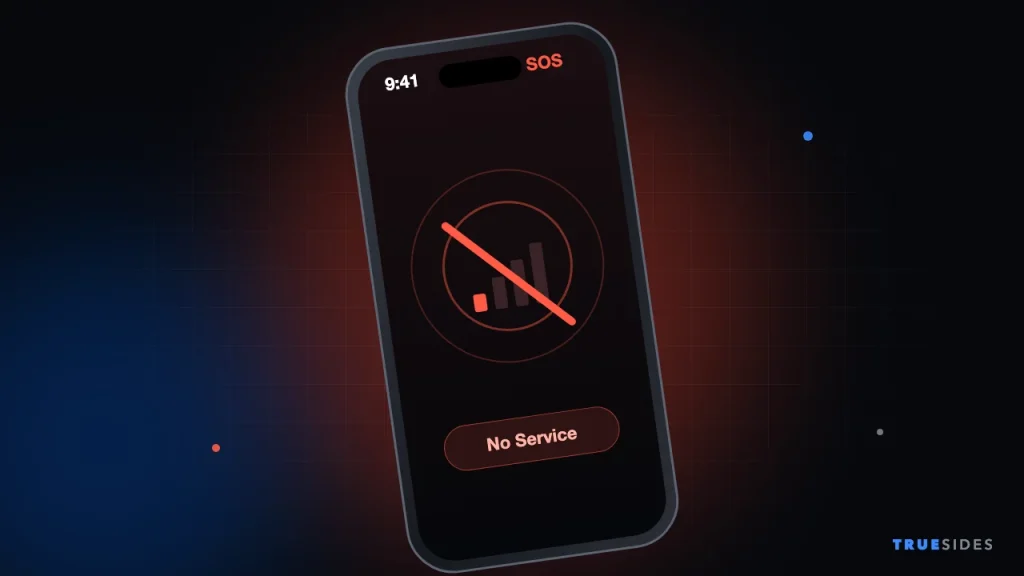
Since late September 2026, a growing number of iPhone 18 Pro Max owners have reported that their phones can’t hold a connection to AT&T’s network. The complaints started on the MacRumors Forums, Reddit, and the Apple Support Community, and by October 1 AT&T was texting customers to update their phones immediately.
The catch? Many people say the recommended update didn’t fix anything. Below, we break down what’s actually happening, why it seems to hit only one model on one carrier, and the fixes that are worth your time while Apple and AT&T work on a permanent solution.
What Does SOS Mean on an iPhone?
When your iPhone shows SOS (or “SOS only”) in the status bar, it means it can’t connect to your own carrier’s network, but it can still reach emergency services through any other carrier that happens to be nearby. In the US, that means you can usually dial 911, but you can’t make normal calls, send SMS texts, or use cellular data.
Normally, SOS shows up for a few minutes in a dead zone or during a carrier outage and then disappears. What makes this situation different is that affected iPhone 18 Pro Max owners are seeing it constantly, in places where their old phones and other AT&T phones had full bars.
The symptoms people are reporting
- SOS or “No Service” in the status bar, even in strong-coverage areas.
- Calls fail instantly, sometimes even when the status bar shows bars instead of SOS.
- SMS and MMS don’t send, while iMessage still works over Wi-Fi.
- No 5G or LTE data, so apps only load on Wi-Fi.
- eSIM activation problems for some people setting up a new line or transferring from an older iPhone.
“WiFi works for the internet but I can’t make calls. Even if it doesn’t say SOS, trying to make a phone call is impossible now.”
An affected iPhone 18 Pro Max owner, via MacTrast
Why Is Only the iPhone 18 Pro Max on AT&T Affected?
This is the most interesting part of the story. According to MacTrast, the US version of the iPhone 18 Pro Max is the only new iPhone this year that uses a Qualcomm cellular modem. The smaller iPhone 18 Pro and the iPhone Duo use Apple’s own C2 modem worldwide, and so does the iPhone 18 Pro Max sold outside the US.
That makes the US iPhone 18 Pro Max the odd one out, and it’s exactly the model that’s having trouble. It’s tempting to blame the Qualcomm modem, but nobody has confirmed that yet. The problem could just as easily be a software bug in how iOS 27 talks to AT&T’s network, or an eSIM provisioning issue on AT&T’s side.
|
Model |
Modem |
Reported AT&T SOS issue? |
|
iPhone 18 Pro Max (US) |
Qualcomm |
Yes |
|
iPhone 18 Pro Max (outside US) |
Apple C2 |
No reports |
|
iPhone 18 Pro |
Apple C2 |
No reports |
|
iPhone Duo |
Apple C2 |
No reports |
So far, the reports are coming almost entirely from AT&T customers, which points to something specific about this model working with AT&T’s network.
What AT&T and Apple Have Said So Far
On Thursday, October 1, AT&T started sending this text message to iPhone 18 Pro Max customers, as reported by IBTimes:
“Hi, it’s AT&T. Action needed: An important Apple software update for your iPhone 18 Pro Max is available. Some phones may be unable to complete calls/text/data, including to 911. Update to iOS 27.0.1 immediately—Settings > General > Software Update.”
The warning about 911 is the part that got people’s attention. AT&T is clearly treating this as serious, and you should too: if you rely on your phone for emergencies, don’t wait to troubleshoot.
Does iOS 27.0.1 actually fix it?
Here’s where things get messy. Apple’s release notes for iOS 27.0.1 talk about fixing a Face ID issue on iPhone 18 Pro models. They don’t mention AT&T or cellular connectivity at all. And plenty of owners on Reddit and the Apple Support Community say they installed the update and are still stuck in SOS.
As of October 2, Apple hasn’t publicly commented on the problem. That doesn’t mean the update is useless: it may include changes Apple didn’t list, and some users do report improvements. But don’t assume you’re fixed just because you updated. Test a real phone call afterward.
How to Fix iPhone 18 Pro Max Stuck in SOS: 7 Steps That Help
Work through these in order. The first few take seconds; the later ones take longer but solve more stubborn cases.
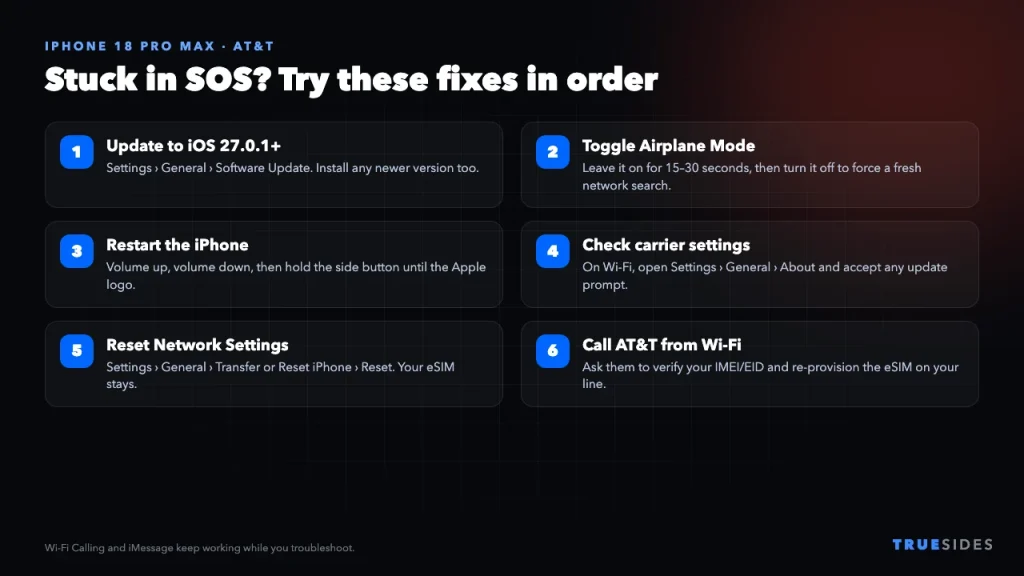
1. Update to iOS 27.0.1 (or newer)
Connect to Wi-Fi, then go to Settings > General > Software Update. Install iOS 27.0.1, or any newer version if Apple has released one by the time you read this. Even if it doesn’t solve the problem on its own, AT&T support will ask whether you’ve done it before escalating.
2. Toggle Airplane Mode
Swipe down to open Control Center, turn on Airplane Mode, wait 15 to 30 seconds, and turn it off. This forces the modem to drop its connection and search for the network from scratch. It’s the quickest fix, and when the problem is intermittent it often brings service back for a while.
3. Force restart your iPhone
A normal restart is fine, but a force restart clears more. Press and release volume up, press and release volume down, then press and hold the side button until you see the Apple logo. Let go and wait for the phone to boot.
4. Check for a carrier settings update
Carriers can push small configuration updates separately from iOS. While on Wi-Fi, go to Settings > General > About and wait about 10 seconds. If a carrier update is available, a pop-up will ask you to install it. If nothing appears, you’re already up to date.
5. Try switching from 5G to LTE
Some users with modem-related connection problems find that forcing LTE is more stable than 5G. Go to Settings > Cellular > Cellular Data Options > Voice & Data and pick LTE. You’ll lose 5G speeds, but a working LTE connection beats a phone that can’t make calls. Switch back to 5G Auto once a proper fix arrives.
6. Reset Network Settings
Go to Settings > General > Transfer or Reset iPhone > Reset > Reset Network Settings. This wipes saved Wi-Fi networks, VPN profiles, and Bluetooth pairings, so have your Wi-Fi password handy. It doesn’t erase your apps, photos, or data. On current iOS versions it shouldn’t remove your eSIM either, but take a screenshot of Settings > Cellular first just in case.
7. Contact AT&T and ask about your eSIM
If you’re still in SOS, contact AT&T. You can use Wi-Fi Calling (more on that below), chat online, or visit a store. Ask them to confirm four things:
- Your account and line are active, with no suspension or billing hold.
- The IMEI and EID on your line match your new iPhone 18 Pro Max (find both in Settings > General > About).
- The device isn’t blocked or flagged on their network.
- Your eSIM is provisioned to the correct device. If not, ask them to push a fresh eSIM.
Several affected owners say AT&T support initially “knew nothing about it,” so mention the October 1 text message about iOS 27.0.1 by name. It helps the rep find the right internal notes.
Stay Reachable While You Wait for a Permanent Fix
If none of the steps above work, the good news is you don’t have to be completely cut off.
Turn on Wi-Fi Calling
Go to Settings > Cellular > Wi-Fi Calling and switch on Wi-Fi Calling on This iPhone. As long as you’re on Wi-Fi, you can make and receive regular phone calls and SMS through AT&T. Make sure your emergency address is up to date, because that’s the location sent with Wi-Fi 911 calls.
Lean on iMessage, FaceTime, and RCS
iMessage and FaceTime work over any Wi-Fi connection. If you need to text Android users, RCS messages may also go through over Wi-Fi depending on your setup. If you’re curious how RCS differs from regular SMS, our guide on what RCS messaging is explains it.
Emergency tip: Even in SOS, your iPhone can usually still call 911 through another carrier’s network. Don’t rely on that alone, though. AT&T’s own warning says some affected phones may not complete 911 calls. Keep a second way to reach help, like a family member’s phone, until your service is back.
Should You Return or Exchange Your iPhone 18 Pro Max?
Right now, the evidence points to a software or network problem rather than defective hardware. Lots of people are affected at the same time, the trouble is limited to one carrier, and the timing lines up with a new iOS release. An exchange will probably give you another phone with the same modem and the same software, and the same issue.
That said, keep an eye on your return window. Apple’s standard return period is 14 days from purchase. If that window is about to close and your phone still can’t make calls on AT&T, it’s reasonable to:
- Document the problem with screenshots of the SOS status bar and failed calls.
- Get a case or ticket number from AT&T support.
- Talk to Apple Support or a Genius Bar about an exchange before the deadline, so you keep your options open.
Want to know what else changed on Apple’s Pro phones recently? Our breakdown of the iPhone 17 Pro Max vapor chamber covers last year’s biggest hardware change.
Final Thoughts
The iPhone 18 Pro Max SOS problem is frustrating because there’s no confirmed fix yet. AT&T is pointing to iOS 27.0.1, Apple’s release notes don’t mention the issue, and some owners are still stuck. Until there’s an official fix, work through the steps above in order, turn on Wi-Fi Calling so you can still be reached, and press AT&T to check your eSIM provisioning.
We’ll update this article as soon as Apple or AT&T confirms the cause or ships a fix.