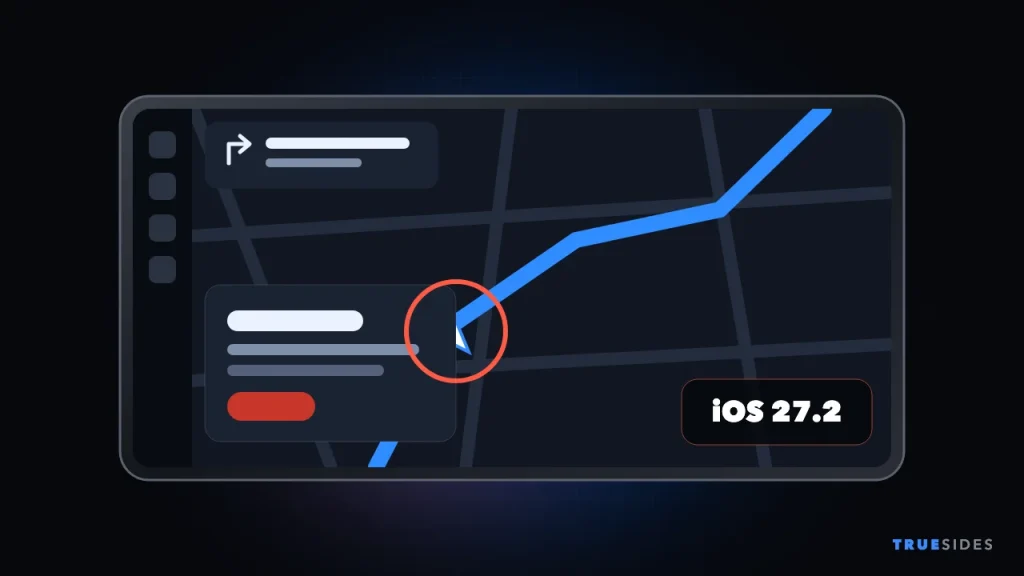
You update your iPhone, start the car, and open Google Maps or Waze on CarPlay. The route is there, but the little arrow showing where you are has disappeared behind a panel. If this happened after iOS 27.2, you’re not imagining it, and your phone probably isn’t broken.
Apple released iOS 27.2 on October 26, 2026. Within days, drivers on Reddit began reporting a navigation problem on CarPlay, and outlets including autoevolution and BGR picked it up.
Not every problem blamed on iOS 27.2 has the same cause, though. Below, we separate the bug that’s been widely reported from the smaller reports, then walk through the fixes worth trying. One thing up front: as of November 5, 2026, we couldn’t find any statement from Apple or a confirmed fix for the panel bug.
What’s Going Wrong After iOS 27.2?
|
Problem |
How well documented? |
Best next step |
|
Panel covers the car icon in Waze and Google Maps on CarPlay |
Widely reported, tested by autoevolution |
Use Apple Maps or wait for an update |
|
Wireless CarPlay disconnects |
User reports since iOS 27 |
Apple’s CarPlay steps below |
|
Slow Siri in CarPlay |
User reports, tied to the Siri AI beta |
Try classic Siri |
|
GPS position freezes in Google Maps on CarPlay |
A few user reports |
Compare with Apple Maps, check location settings |
|
New Health app missing |
Not a bug |
Wait for iOS 27.3 |
The Waze and Google Maps Panel Bug
This is the main problem. On CarPlay, the journey information panel, which shows your arrival time and trip details, overlaps the spot where your vehicle icon should be. Its right edge can hide the navigation arrow or your custom vehicle icon, so it’s harder to see exactly where you are on the route.
Navigation still works. You still get voice directions, and BGR notes that the top-left panel still shows your upcoming turns and exits. It’s more of a visibility problem than a broken app, but that’s little comfort when you’re trying to read a complicated junction.
Is it really caused by iOS 27.2?
Probably iOS, though the timing is disputed. Some drivers say it began with iOS 27.2, while others say they’ve seen it since iOS 27 launched in September. Autoevolution’s writer saw the bug on an up-to-date iPhone 16 Pro Max but not on an iPhone 15 Pro that hadn’t been updated yet. Reports span a range of models, from the iPhone 15 Pro to the new iPhone Duo.
Because the bug affects both Google Maps and Waze the same way, it doesn’t look specific to one app. Autoevolution’s assessment is that it probably can’t be solved without an iOS update, since CarPlay changes ship with iOS itself.
The honest answer: Autoevolution found no known workaround that fixes the panel itself. The usual troubleshooting below is still worth trying for other CarPlay problems, but if your only symptom is the overlapping panel, a restart probably won’t cure it.
What to do until Apple fixes it
- Switch to Apple Maps for now. The reports focus on Google Maps and Waze, so it’s the simplest stopgap.
- Compare Waze and Google Maps. BGR suggests trying both to see which is easier to read in your car.
- Rely on voice directions and the turn panel. Keep the sound on, and use the top-left panel for upcoming turns.
- Haven’t updated yet? Waiting avoids the bug if you don’t have it now, but see the warning below first.
Should you skip iOS 27.2?
We wouldn’t skip it for long. TechCrunch reports that iOS 27.2 includes more than 160 security fixes, and that’s a lot to give up over a display glitch. If you navigate with Waze or Google Maps every day, a short delay is reasonable. If you’ve already updated, note that Apple says an installed iOS update can’t be downgraded, so don’t spend time looking for a way back.
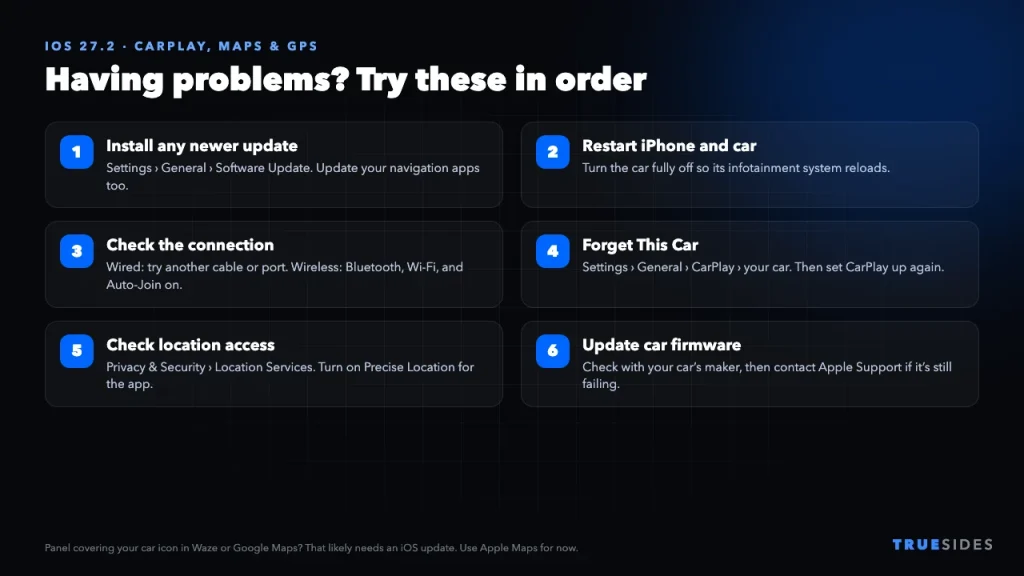
How to Fix CarPlay, Maps, and GPS Problems: 6 Steps
If your problem isn’t the panel bug, or you want to rule everything else out, work through these in order and test after each step. The CarPlay steps follow Apple’s own troubleshooting guide.
1. Install any newer update
Go to Settings > General > Software Update. As of this writing, iOS 27.2 is the current public release and iOS 27.3 is in beta. If a newer version is available when you read this, install it first and check its release notes for CarPlay fixes. Update Google Maps and Waze from the App Store too.
2. Restart your iPhone and your car’s system
Restart the iPhone, then fully turn off the car and start it again, so the infotainment system reloads. It’s simple, but Apple lists it for a reason. If the phone is frozen, press and release volume up, press and release volume down, then hold the side button until the Apple logo appears.
3. Check your connection
For wired CarPlay, try a different USB cable and a different USB port if your car has one. Adapters can cause trouble too, so Apple suggests a direct cable if a USB-C to Lightning adapter is in the chain.
For wireless CarPlay, make sure Bluetooth and Wi-Fi are both on. Then go to Settings > Wi-Fi, tap your CarPlay network, and check that Auto-Join is on.
4. Forget your car and set CarPlay up again
Go to Settings > General > CarPlay, tap your car, and choose Forget This Car. Then pair it again from scratch. This often helps with connection problems and repeated disconnects. If your iPhone isn’t detected at all, also check Settings > Screen Time > Content & Privacy Restrictions > Allowed Apps to confirm CarPlay isn’t turned off there.
5. Check location settings for your navigation app
This one is for GPS and wrong-location problems. Go to Settings > Privacy & Security > Location Services and make sure the main toggle is on. Then tap Google Maps, Waze, or Maps, set access to While Using the App or Always, and turn on Precise Location.
If that looks correct, try the stronger option: Settings > General > Transfer or Reset iPhone > Reset > Reset Location & Privacy. It won’t erase your data, but apps will ask for location and other permissions again.
6. Update your car’s software and contact support
Apple also recommends making sure your CarPlay stereo has the latest firmware from the manufacturer, so check your car’s manual or dealer. If nothing has helped, contact Apple Support. More reports help Apple see the scale of a problem, and support can rule out a hardware fault.
Other Problems People Are Reporting
GPS freezing in Google Maps on CarPlay
We found far less on this than on the panel bug, so treat it as unconfirmed. One iPhone 17 owner says that since updating to iOS 27, their position in Google Maps on CarPlay often freezes and their speed shows as wrong or zero, while Maps works properly on the phone itself and Apple Maps works fine in the car. That report predates iOS 27.2.
Here’s a useful test: open the same route in Apple Maps on CarPlay, then in Google Maps directly on your iPhone. If only one app on CarPlay misbehaves, your phone’s GPS hardware probably isn’t the cause.
Siri slow or unresponsive in CarPlay
According to Tech Between the Lines, owners have described Siri pausing for up to 15 seconds in CarPlay or failing to finish requests since late September. Several say switching from the Siri AI beta back to classic Siri brought normal speed back, which points to the beta. Apple hasn’t commented.
The new Health app is missing
If you’re searching because you expected a redesigned Health app, nothing is wrong with your phone. The redesign appeared in iOS 27.2 betas, but Apple removed it before the public release. MacRumors reports that it’s back in the iOS 27.3 beta.
Find My showing less location detail
Tech Between the Lines is also tracking a small number of reports of Find My showing incomplete location data. It’s unconfirmed. Restarting the iPhone and switching Location Services off and on is an easy thing to try.
Battery running hot or draining after the update? That’s often temporary. Apple says your iPhone may need time after an update to finish indexing and other background setup, so give it a day or two before you start troubleshooting.
When Will Apple Fix It?
We don’t know. Apple hasn’t publicly addressed the panel bug. Apple released the first iOS 27.3 beta on November 3, and BGR notes that an iOS 27.2.1 bug-fix update is expected by some, but it’s unclear whether either one includes this fix. We’d avoid installing a beta on the phone you depend on just to chase this, since betas can bring problems of their own.
For more on recent iPhone troubles, see our guide to the iPhone 18 Pro Max stuck in SOS on AT&T. And if you’re paying for more storage just to keep your phone backed up, our breakdown of iCloud charges is worth a look.
Final Thoughts
If Waze or Google Maps started hiding your car icon on CarPlay, it’s most likely an iOS issue, not your phone, your car, or something you did. Apple Maps and voice directions will get you through until an update arrives. For disconnects or location problems, the six steps above are worth your time, and most of them take only a few minutes. We’ll keep watching for Apple’s fix.